Getting the Most from the ElitePRO™ Series Thermostats
Multiple programming options that fit your lifestyle:

|
|

|
Smart Alerts. Push notifications remind you of filter changes and warn you of extreme indoor temperatures. |

|
Adaptive Recovery. Learns your heating and cooling system to deliver the optimal temperature at the right time. |

|
Auto Change From Heat to Cool. Automatically determine if your home needs heating or cooling to provide maximum comfort. |
Highlights
Wireless indoor sensors
Use wireless indoor sensors with
Prioritize rooms when using wireless indoor sensors (S1000, S1100, or S1200 models)
Prioritize a specific room or multiple rooms, or let comfort follow your move using built-in motion detection.
Control on the Go
Adjust your thermostat from anywhere using your tablet or smart phone.
Save Energy
With Auto Away, you can save money on the most expensive part of your energy bill while you’re away.
Know Your Home Is Safe
Get customizable alerts on your mobile device when the basement is so cold a pipe could burst, or if the baby’s room is getting too hot.
Matter Setup
-
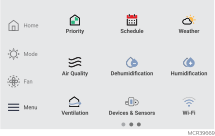
Touch Menu icon at the bottom left of the home screen.
-
Scroll to and select Matter.

-
Use the smart phone connect to Matter enabled devices by scanning the QR code shown on your thermostat.
-
Follow the instructions on your phone.

Using Your Thermostat
The screen will wake up by touching the center area of the displayed temperature.
Indoor Air Quality Control and Monitoring may not be shown.
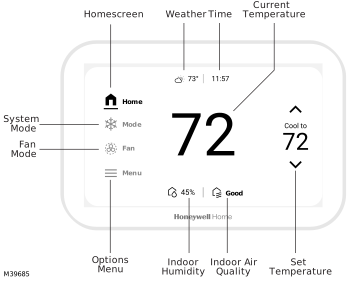
Using Priority (S1000, S1100, or S1200 with wireless sensors)
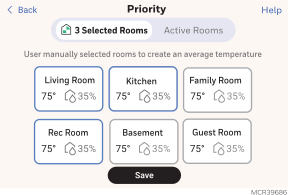
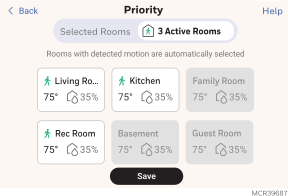
When wireless indoor sensors are used, the Priority setting creates an average temperature in your home based on specific rooms. This allows you to prioritize comfort where you want it. To access Priority, touch Menu > Priority. There are two options to choose from: Selected Rooms and Active Rooms.
Video: Minimize Uncomfortable Areas in Your Home (indoor sensors & priority)
Watch this video for step-by-step instructions on using the Priority feature.
Selecting Sensors
The temperature reading displayed on the home screen is from the sensor or sensors that are being used for temperature control. You can change which sensors are being used for control by selecting menu-priority. From the home screen, touch Menu icon at the bottom left of the display and select Priority.
Priority Screen
Selected Rooms
When set to “Selected rooms” you may select one or more rooms to read the wireless indoor sensor information from. When multiple sensors are selected, the temperature is averaged.
Active Rooms
When set to “Active rooms” the thermostat controls temperature based on the reading from the thermostat and/or indoor sensors that detect motion.
IAQ Reminders
You can set up IAQ reminders in the thermostat to remind users when filters, pads, bulbs, etc. need cleaning or replacement.
See IAQ Reminders for more information.
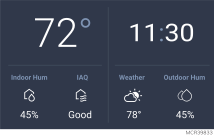
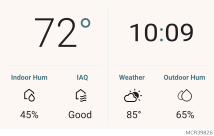
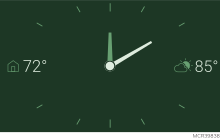
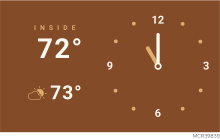
Idle Screen
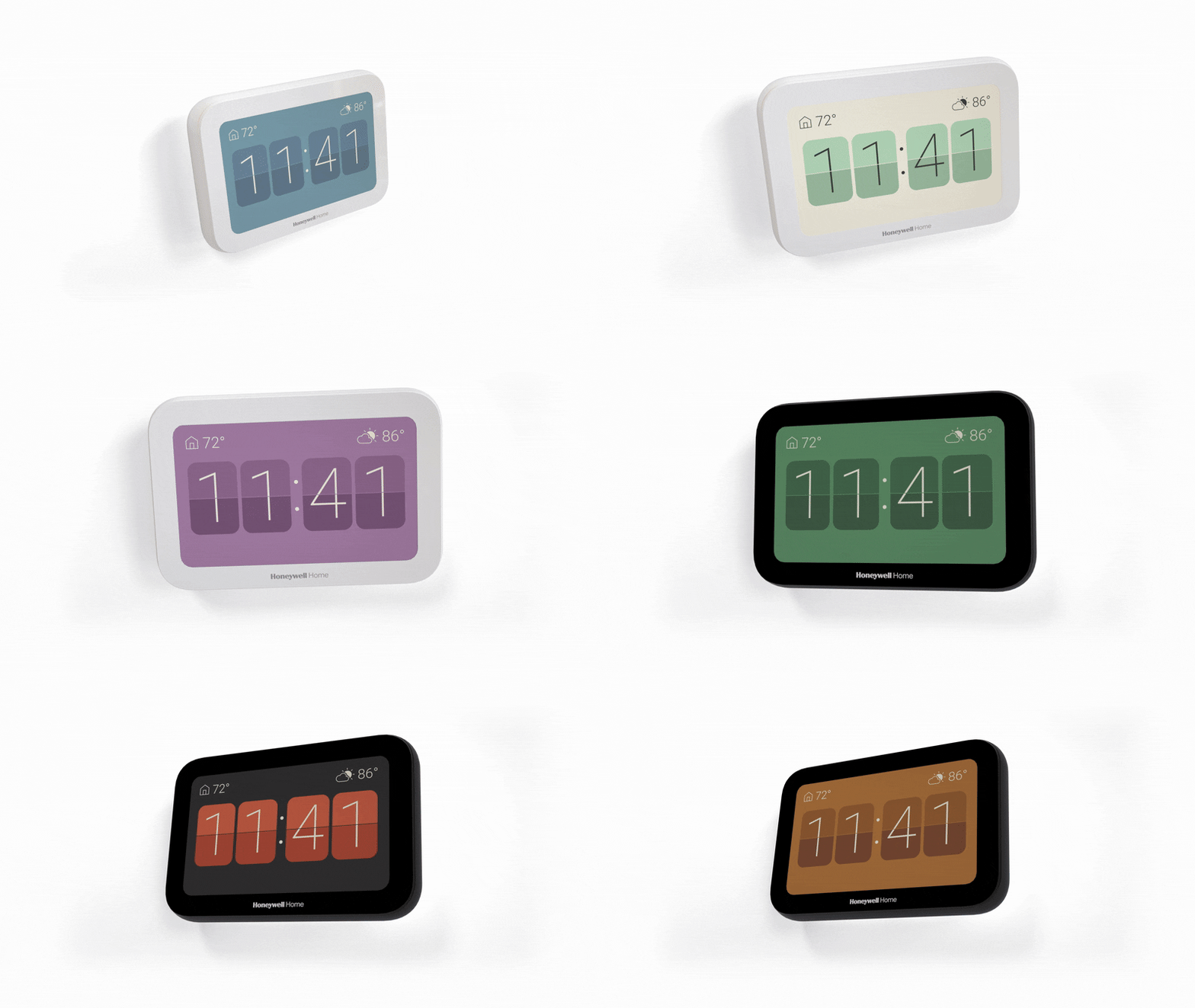
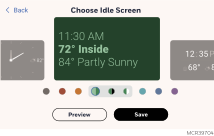
The ElitePRO™ Series Thermostat allows you to select the screen color and appearance. Select Menu > Preferences > Display > Idle Screen.
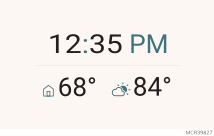
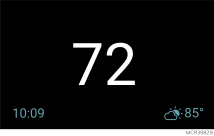
Some of the Idle Screen options are as follows:





Screen Brightness
There are two settings that can be used by customers who do not want the thermostat display to illuminate a dark room at night: "Auto Brightness" and "Active Brightness".


Fallback Room (S1000, S1100, or S1200 with wireless sensors)
Under the preferences menu you can select which Room(s) are used if either:
-
The thermostat is set for active rooms and none of the sensors detect activity.
-
The selected sensors (active rooms or selected rooms) lose communication to thermostat (sensor failure, dead batteries, etc.)
If the fallback sensor is also not communicating, the thermostat sensor will be used unless the installer had selected “NEVER USE THERMOSTAT”.
If you select Fallback Room then Options, you can select Never use thermostat. This would be done if the thermostat was mounted in a utility room or other location that is not sensing the space temperature in an area it is controlling.